Have the conversation, not a documentation contest.
Follow these steps once. somaCURA keeps the clinical thread while you
listen, reason, and decide.
1
Click + New Transfer.
This opens a blank transfer workspace.
2
Paste the Transfer Logistics RN message.
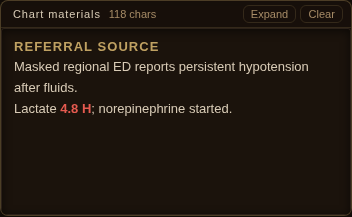
In Epic, open the RN message and copy the patient snippet—the
chart link and proposed-transfer one-liner—into
Chart materials. Add selected relevant chart material
as the case warrants. You can edit, add, or delete it before,
during, or after the call.
3
Enter the phone you are using.
Use your cellphone or hospital landline.
4
Click Call Logistics, then answer.
Remain on the line. somaCURA connects you to the Transfer
Logistics RN, who connects the referring physician.
5
Talk normally. Make the transfer decision.
Choose Accept, Pending specialist,
or Decline. If accepted, tap the Unit
chip — ICU, Med/Surg, Neuro/BSI, ER or Acute. Destination
stays Avera McKennan unless it is an external transfer; tier is
optional.
6
Finish the call and the note.
End Call → let the final processing settle →
Generate Transfer Note → Proofread →
Copy into Epic.
Ready to work?
Open somaCURA your way.
Transfer Center is selected from this guide. You can choose the main
medical app instead before you continue.
A transfer call asks you to listen, understand the patient's
condition, participate in the clinical conversation, make care and
transfer decisions, and somehow preserve the details at the same
time. Splitting your attention between the physician and scratch
notes weakens both.
somaCURA preserves the clinically relevant conversation and source
material while you talk. When the call ends, you are reviewing a
source-linked case and draft—not rebuilding the call from memory.
That matters when 10, 15, 20, or 25 transfers stack into one day.
What somaCURA does while you talk
Talk to the referring physician normally. Listen, clarify, reason,
and decide. You do not need to narrate for the app or feed it a
script.
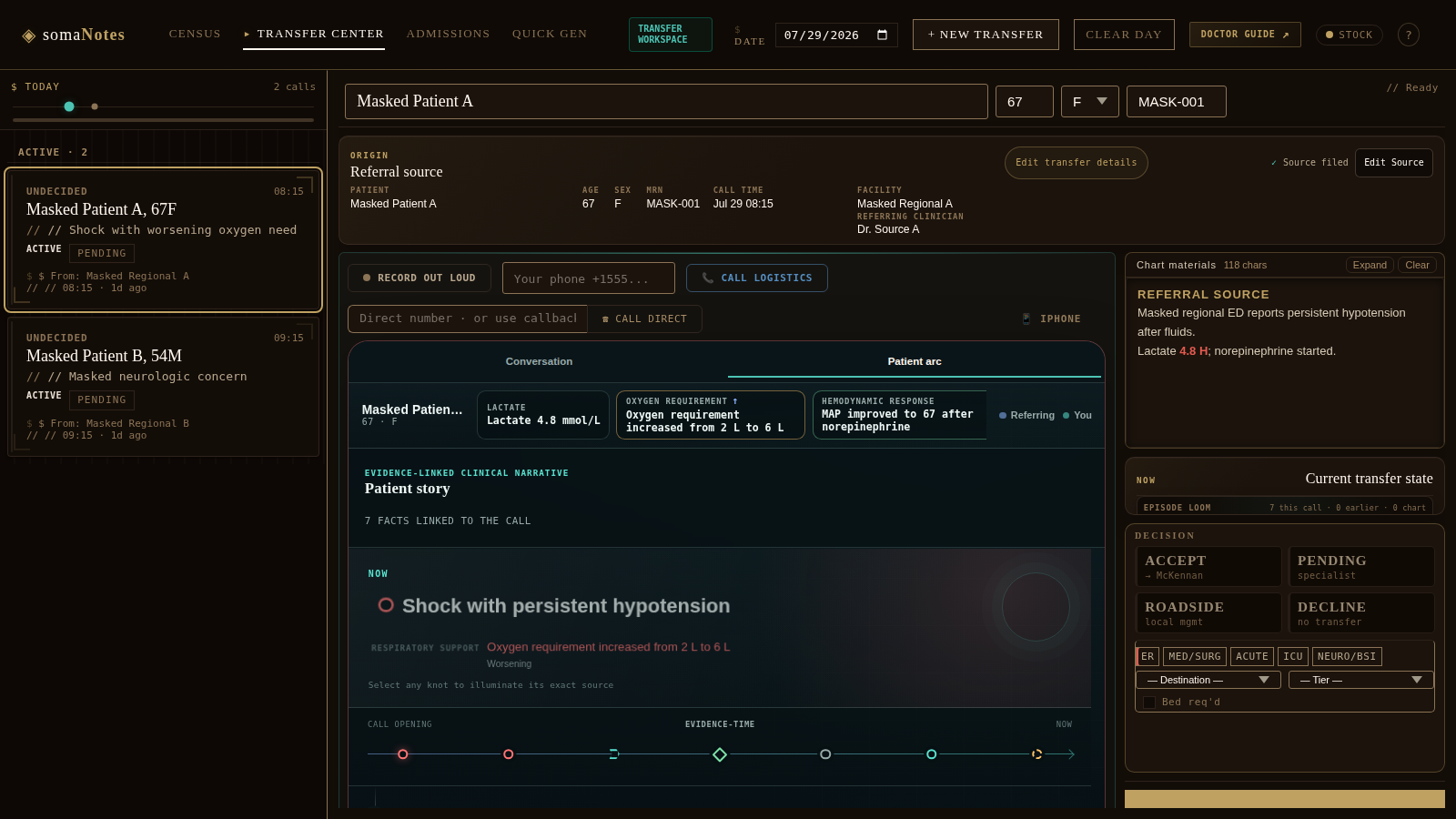
The current workspace after opening a transfer.
Chart materials stays editable before, during,
and after the call.
Enter the cellphone or hospital landline you are using, then
choose Call Logistics.
The live surface uses synthetic information. No real PHI appears
in this guide.
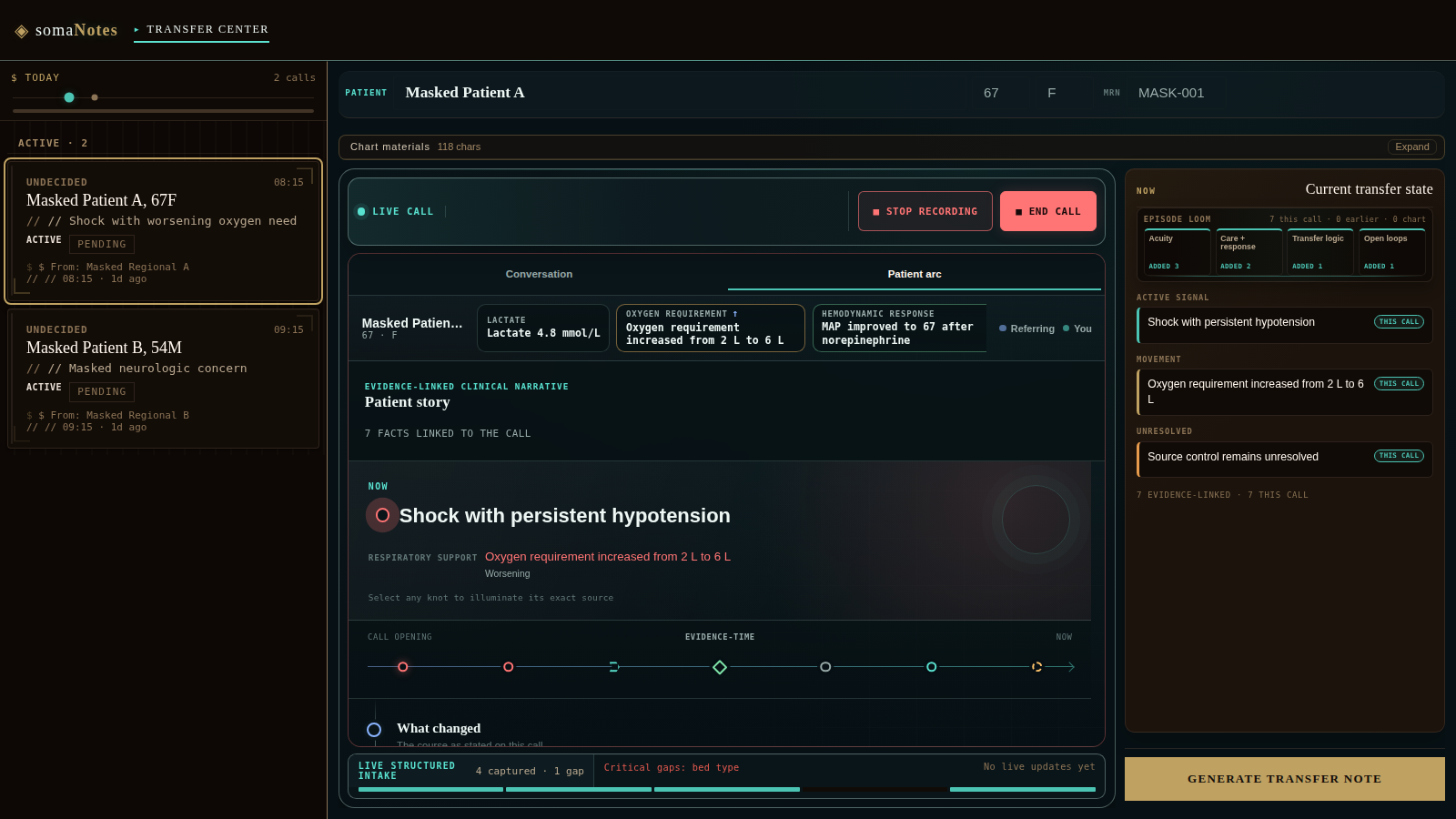
Conversation
The captured discussion and the exact source for correcting an
important transcription error.
Patient arc
The evidence-linked patient story as it develops across chart
material and conversation.
NOW / Current transfer state
The important current facts, clinical movement, and unresolved
work. Select a fact to open its transcript or chart evidence.
Decision
Your disposition and, when accepted, the unit, destination, and
urgency tier.
How to finish the transfer
Choose Accept,
Pending specialist,
or Decline. If accepted, tap the
Unit chip — ICU, Med/Surg, Neuro/BSI, ER or
Acute. Destination stays Avera McKennan unless it is an external
transfer; tier is optional.
Use End Call when the phone conversation is
over. Stop recording controls
browser-microphone capture; it does not replace ending a phone
call.
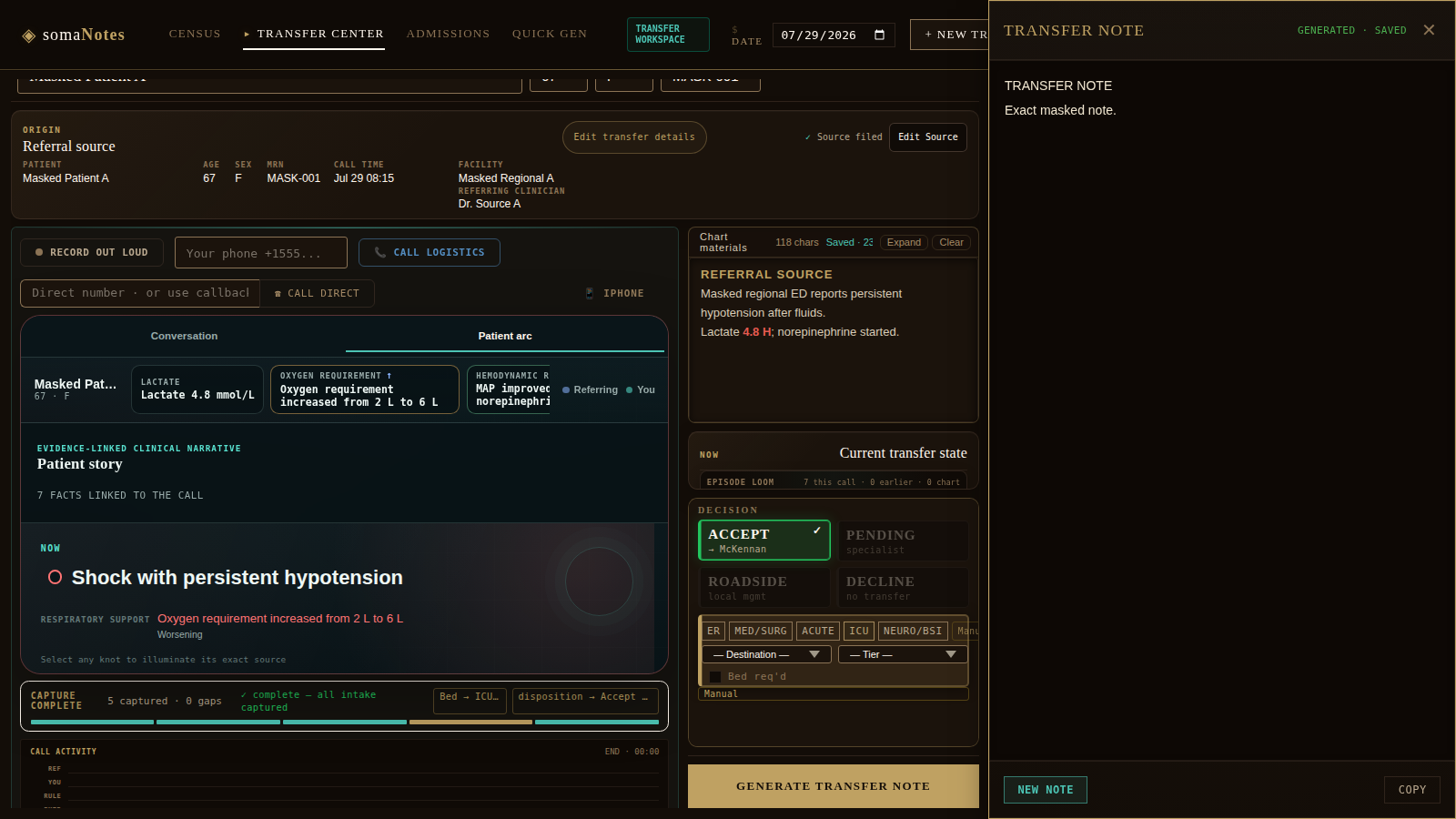
Let the remaining transcript tail and clinical processing
settle, then choose Generate Transfer Note.
Proofread the patient story, decision, treatments and response,
pending work, and first priorities for the receiving team.
Choose Copy, place the draft into the required
Epic workflow, review it in context, and sign normally.
Generated · saved can be reopened.
Generated · not saved — copy now remains
copyable but should be copied immediately.
New Note creates a fresh draft.
If something interrupts the flow
The phone has not rung.
Confirm the entered cellphone or landline and the connecting
state. Do not repeatedly start duplicate calls.
I answered and hear silence.
Remain on the line while somaCURA connects Transfer Logistics.
An audio gap appeared.
After the connection returns, repeat any clinically important
name, value, dose, or decision spoken during the gap.
A material transcript fact is wrong.
Use Correct. Your explicit correction takes
priority over the earlier capture.
I need to change the chart source.
Edit Chart materials at any time. Add, correct,
or delete source before, during, or after the call.
The phone call ended but capture still appears active.
Use Stop recording for browser capture. Phone
hang-up and browser recording are separate states.
The note is blocked or not saved.
Make sure the call has ended and the decision is complete. If
the drawer says not saved — copy now,
proofread and copy the available draft immediately.
Other ways to capture
Call Direct
Use a clinician, clinic, or hospital number when you
intentionally need to call that destination directly instead of
using the Transfer Logistics bridge. The same transcript and
clinical workflow remain attached to this transfer.
Record Out Loud
Use browser-microphone capture for a conversation already
happening around the device or for spoken case capture. It is an
alternate capture path for the same transfer workspace.
First visit and deeper somaCURA help
First visit
Open somacura.icu.
Choose Create Account, enter the requested
information, and choose Doctor.
After signing in, choose Transfer Center in the
application header.